
- Sun 10 May 2026
- Intranet
- Benson Muite
- #Music, #Parabola linux
These notes describe the setup used in the demo at the meetup on 2 May 2026, with additional information about the web interface which was not discussed.
Local Music Streaming with MPD and Snapcast
Media Player Daemon (MPD) is a GPL 2.0 or later license software that allows one to manage a music collection. It uses a server and client architecture, so needs to be used with another peice of software to be able to control playing of music. It can be installed on a variety of operating systems, including many GNU/Linux distributions through their package managers and has an experimental Android port available through F-Droid. The user manual also describes how to compile it from source should you wish to use it on an operating system for which there is no ready package or should you want to build it with specific options enabled.
MPD has a clear and stable specification for how clients should connect to it and control the music that is played. There are many choices of clients to use, both for computers and for mobile devices. Some are listed on the MPD webpage. This guide will not go into any detail on using many of these, and will focus on xfmpc. If you wish to use your Android phone as a client, M.A.L.P. is an option.
Snapcast enables one to stream an audio source to many outlets. It is particularly suited to streaming audio to speakers in different rooms in the same building as it ensures that the sound remains synchronized as one moves from one room to another. The audio is streamed over the local internet, so mobile devices can also be used to play the audio. Snapcast is available under the GPL 3.0 or later license.
Installation
MPD and xfmpc are available in the Parabola GNU/Linux, for MPD see https://www.parabola.nu/packages/extra/x86_64/mpd/ and for xfmpc see https://www.parabola.nu/packages/extra/x86_64/xfmpc/. To install them, open a terminal and type
sudo pacman -Syu mpd xfmpc
Snapcast is not yet packaged for Parabola GNU/Linux, but there is a package available on the Arch User Repository, the PKGBUILD can be used to install Snapcast on Parabola GNU/Linux. Within a terminal, run the following commands
mkdir snapcast
cd snapcast
curl https://aur.archlinux.org/cgit/aur.git/plain/PKGBUILD?h=snapcast -o PKGBUILD
curl https://aur.archlinux.org/cgit/aur.git/plain/snapcast.install?h=snapcast -o snapcast.install
curl https://aur.archlinux.org/cgit/aur.git/plain/snapcast.sysusers?h=snapcast -o snapcast.sysusers
curl https://aur.archlinux.org/cgit/aur.git/plain/snapcast.tmpfiles?h=snapcast -o snapcast.tmpfiles
These command gets the necessary files to build the package. Then install the dependencies for the package
``bash sudo pacman -Syu alsa-lib alsa-utils avahi cmake expat flac libnotify libpipewire libpulse sudo pacman -Syu libsoxr libvorbis openssl python-dbus python-mpd2 python-musicbrainzngs sudo pacman -Syu python-requests python-websocket-client
To build the package type
```bash
makepkg si
Finally install the package using
sudo pacman -U snapcast*.zst
Configuring MPD and Snapcast
The software has been installed, however to use it, some configuration is required. For simplicity, we will create and use a local user configuration. If you expect to run MPD continuously, a system configuration that will start and run MPD whenever the computer is restarted may be useful - as this will be run attended, you will need to secure it appropriately.
Configuring MPD
Create a directory for the configuration file, then copy the example configuration file to it:
mkdir ~/.config/mpd
cp /usr/share/doc/mpd/mpdconf.example ~/.config/mpd/mpd.conf
Before changing the configuration, check your ip address
ip config
Note down the local ipV4 address, which will be similar to
inet 192.168.100.78/24
Edit the configuration file, for example if you are using nano, open the file using
nano ~/.config/mpd/mpd.conf
feel free to use other editors such as Emacs or vim.
Next, indicate where your music files are located by changing line 14 from
#music_directory "~/music"
to
music_directory "~/Music"
or another directory that contains your music files.
Indicate the location for MPD to create a temporary database file by uncommenting line 30 from
#db_file "$XDG_CACHE_HOME/mpd/database"
to
db_file "$XDG_CACHE_HOME/mpd/database"
Indicate the location to create a temporary log file by uncommenting line 41 from
#log_file                    "$XDG_CACHE_HOME/mpd/log"
``
to
log_file "$XDG_CACHE_HOME/mpd/log"
Allow MPD to create a file to store the process id by uncommenting line 51
from
pid_file "~/.mpd/mpd.pid"
to
pid_file "~/.mpd/mpd.pid"
this will allow you to stop MPD by using `mpd --kill` when you want to shut
it down.

To enable MPD to manage information related to songs while in use, uncomment
line 64 from
sticker_file "$XDG_CACHE_HOME/sticker.sql"
to
sticker_file "$XDG_CACHE_HOME/sticker.sql"
To enable MPD to be connected to on your local network, uncomment line 85 from
bind_to_address "any"
to
bind_to_address "192.168.100.78"
where the ip address is the one you noted down earlier and should be changed
appropriately.

Specify the port that MPD should be connected to by uncommenting and change
line 94 from
port "6600"
to
port "7897"
Check that this port is not assigned by using
cat /etc/services | grep 7897
if it does show up as assigned, use another port.

Enable MPD to update the files in your music directory automatically if they
are changed while MPD is running by uncommenting line 124 from
auto_update "yes"
to
auto_update "yes"
To enable clients to have minimal permissions to play songs, uncomment and
change line 173 from
default_permissions "read,add,control,admin"
to
default_permissions "read,add,player"
Finally, for Snapcast to be able to read output from MPD, at the end of the
file, add
audio_output { type "fifo" name "snapcast output" path "/tmp/snapfifo" format "48000:16:2" mixer_type "software" }
This will create a stereo 16 bit output stream at 48KHz.

Exit your editor.

Create a folder for the temporary pid file
mkdir ~/.mpd
If you do not have any music in `~/Music`, put some music files there,
for example using
cd ~/Music curl https://ia803204.us.archive.org/zip_dir.php?path=/0/items/Soul_Africa-6615.zip -o Soul_Africa-6615.zip unzip Soul_Africa-6615.zip cd $HOME
which will download the album
[Soul Africa](https://archive.org/details/Soul_Africa-6615)
by [Juanitos](https://mrjuan.fr/juanitos/), feel free to choose something more
to your liking.

### Configuring Snapserver

Now configure Snapcasts' Snapserver. To enable control over http, change line
81 of `/etc/snapserver.conf` from
enabled = true
to
enabled = true
You will need to edit the file with root permissions, that is launch your
editor with sudo, for example `sudo nano /etc/snapserver.conf`, where
[nano](https://www.nano-editor.org/) is the editor being used, though  feel
free to use other editors such as [Emacs](https://www.gnu.org/software/emacs/)
or [vim](https://www.vim.org).

Indicate the address the server should listen on by changing line 88 from
bind_to_address = ::
to
bind_to_address = 192.168.100.78
where the ip address is the one you noted down earlier and should be changed
appropriately.


Indicate the port the server should listen on by uncommenting line 91 from
port = 1780
to
port = 1780
Indicate that the server should publish http content by uncommenting line 94
from
publish_http = true
to
publish_http = true
for simplicity, we will not encrypt locally served traffic.

Enable control through the web interface by uncommenting line 128 from
enabled = true
to
enabled = true
Indicate that address through which control information should be sent by
changing line 135 from
bind_to_address = ::
to
bind_to_address = 192.168.100.78
where the ip address is the one you noted down earlier and should be changed
appropriately.

Indicate the port through which control information should be sent by
uncommenting line 138
port = 1705
to
port = 1705
Publish the tcp control service over mDNS by uncommenting line 141
publish = true
to
publish = true
Enable streaming over tcp by uncommenting line 145
enabled = true
to
enabled = true
Uncomment and indicate the ip address to listen on by changing line 152 from
bind_to_address = ::
to
bind_to_address = 192.168.100.78
where the ip address is the one you noted down earlier and should be changed
appropriately.

Uncomment and indicate the port to listen on by changing line 155 from
port = 1704
to
port = 1704
Publish the streaming service over mDNS by uncommenting line 158 from
publish = true
to
publish = true
Indicate the streaming source and type by changing line 190 from
source = pipe:///tmp/snapfifo?name=default
to
source = pipe:///tmp/snapfifo?name=mpd&sampleformat=4800:16:2
## Opening ports

Parabola GNU/Linux is not configured to allow access to all network ports.  The
ports that will be used by MPD and Snapcast need to be enabled to allow access
from other devices on the local network.  Parabola GNU/Linux uses
[iptables](https://en.wikipedia.org/wiki/Iptables) to manage access to network
ports.  Open the ports by using
sudo iptables -A INPUT -p tcp --dport 7897 -j ACCEPT sudo iptables -A INPUT -p tcp --dport 1780 -j ACCEPT sudo iptables -A INPUT -p tcp --dport 1705 -j ACCEPT sudo iptables -A INPUT -p tcp --dport 1704 -j ACCEPT
## Running MPD and Snapcast


Start MPD and Snapcast by using
mpd snapserver
MPD will start and run in background mode. Snapserver will run
in foreground mode in your terminal.
Start xfmpc either from another terminal window or using the launcher,
Snapserver needs to continue running to enable sharing the stream.
Within xfmpc, open the `Context Menu` and choose the preferences option.
{: .image-process-large-photo}
Once the dialog opens, inter the ip address of the machine on which MPD is
running, here we have used 192.168.100.78 and enter the port to connect
to the MPD server 7897. Click `Apply` then `Close` the preferences dialog.
{: .image-process-large-photo}
Once xfmpc connects to your MPD server, click on `Browse Database` then select
the songs you want to be added to your playlist by clicking on a song and
choosing add.
{: .image-process-large-photo}
After selecting your songs, change from `Browse database` to `Current playlist`
and press the play symbol to play the playlist.
{: .image-process-large-photo}
As the audio is streamed to a web client, you will not hear anything. Open a
web browser from a device on your local network and point it to
http://192.168.100.78:1780/
``
where the ip address is the one you noted down earlier and should be changed
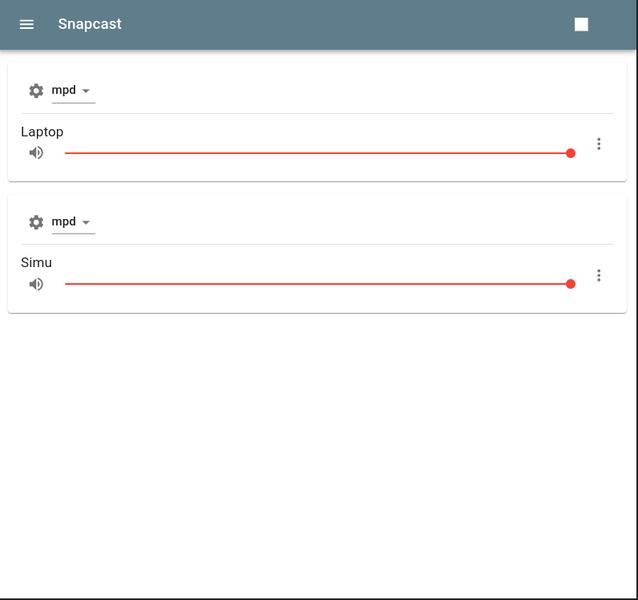
appropriately.  You can connect multiple devices on the local network to listen
to the music.  It is possible to rename the devices by clicking on the three
vertical dots to open the
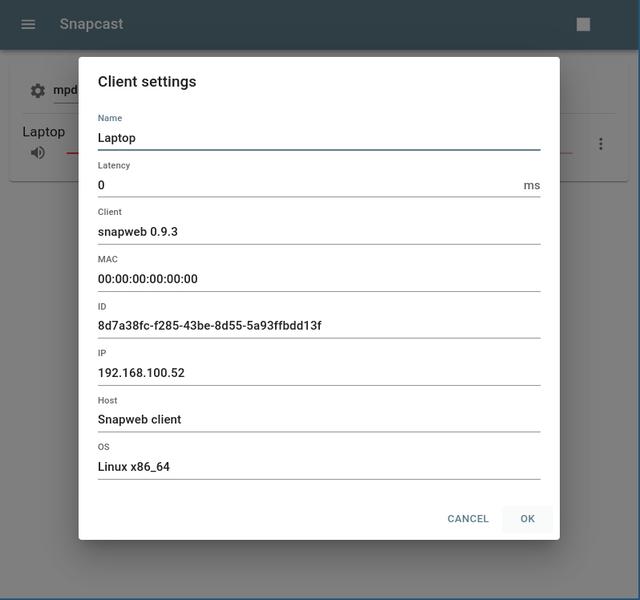
details` menu.
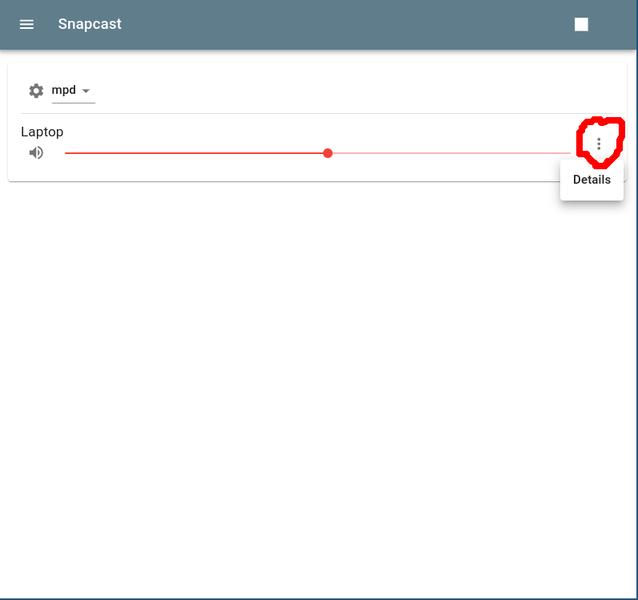
Then change the name of the device.
When playing your music, you should be able to see the different output devices
and control their volume from the web interface.
To control MPD, you may want clients with more features, a prettier GUI or a command line interface. Try an internet search, or install some of the options listed on the MPD website.
Content available under CC BY-SA 4.0
References
There are many online resources for setting up MPD and Snapcast. The following have been used in preparing this guide: * Music Player Daemon Guide on Arch Wiki * Home Audio with MPD and Snapcast by Roger Bell_West * Music Player Daemon: Simple Setup on DesdeLinux * Setting up Snapcast by Adam De Guire